 GroupDelete
Step-by-Step Installation Guide
Get GroupDelete up and running in just a few minutes. Follow the steps below.
Download GroupDelete
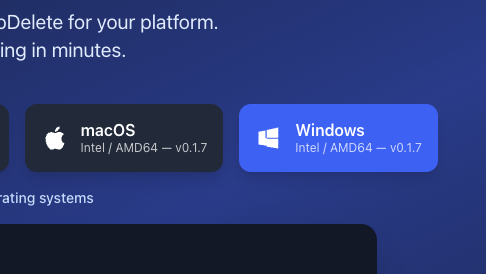
Choose the download for your operating system above. After purchasing a license, you'll receive an email with your license key.
Keep your license key handy — you'll need it when you first launch the app.
Install the App
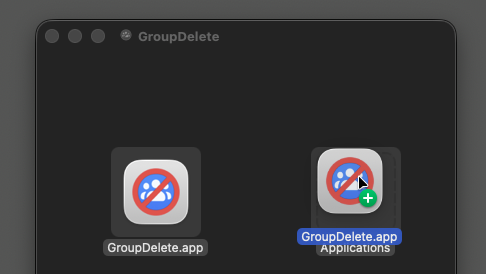
Open the downloaded file and follow the standard install process for your platform. On macOS, drag GroupDelete to your Applications folder. On Windows, run the installer. On Linux, make the binary executable and run it.
macOS users: If you see a security warning, go to System Settings → Privacy & Security and click 'Open Anyway'.
Launch GroupDelete
Open GroupDelete from your Applications folder, Start Menu, or terminal. The app will open a browser window with the GroupDelete dashboard.
GroupDelete runs locally on your machine — your data never leaves your computer.
Open a Facebook Group
Open Facebook, log in, then select a group you manage to delete.
Activate Your License
Enter the license key from your purchase email and click Activate. Your license will be validated instantly and you'll be ready to go.
Your license can be used on up to 2 devices. You can manage your devices from your account.
Upgrade Required
Enter the license key from your purchase email to unlock unlimited removals.
Enter Your Code
← Back
Log In to Facebook
Click Open Facebook. GroupDelete opens its own browser and goes to Facebook. Log in with the account that manages the groups you want to delete. The app never saves your password. When you close that browser, the session is gone.
If a browser isn't already available, GroupDelete will download a compatible one automatically.
Open a Facebook Group
Open Facebook, log in, then select a group you manage to delete.
Select a Group
Once you're logged in, GroupDelete lists the Facebook groups you manage. Pick the group you want to delete.
Don't see your group? Open it in the GroupDelete browser, then refresh the list.
Select a Group
Choose a group you manage to delete.
Don't see your group? Navigate to it directly and click Refresh.
← Back
Run
Confirm the deletion and let GroupDelete remove members one at a time, then delete the group. Facebook does not allow a bulk delete, so a large group can take a while — you don't have to sit there clicking.
Each person is removed one at a time. Several seconds per person is expected.
Removing members
Removed Jordan Hale
Each person is removed one at a time. This can take several seconds per person — that's expected.
You're All Set!
GroupDelete is installed and ready to go. If you run into any issues, check the FAQ on our homepage or reach out to support.